The first two posts covered what Kanbox does today and how it parses links. This one picks up after you've saved something: how do you find it again weeks later?
Sometimes you remember the title. Sometimes all you remember is "something I saved last week," "that thing on Xiaohongshu," or "I think it was a recipe." Different clues call for different entry points. Kanbox now offers search, filters, tags, notes, random review, and widgets, each suited to a different situation.
If you only remember one word, search first
Take the Istanbul photos from the first post. You don't need the full title; searching "Istanbul" will surface them. Search currently looks at titles, body text, authors, tags, and source domains within your saved items. It doesn't go back out to the open web.
Source domains are matched too. If a link's body text never got parsed, you can still narrow things down by the site's domain, so a bare URL doesn't leave you completely stuck.
Results are split into "All," "Content," and "Authors." "All" shows matching authors first, then matching content; switch to "Content" if you only want saved items. Authors are aggregated from matching saves, not pulled from a separate platform user search. Authors with the same name are kept apart by platform or identifiable account identity rather than being lumped together.
Cards highlight the matched text so you can tell why a result showed up. When you open a detail view and come back, your place in the result list is preserved, so you don't have to scroll from the top every time.
Right now this is keyword substring matching, not semantic search. Typing "what's for dinner" won't automatically be understood as a request for all recipes. Images and audio aren't run through extra recognition at search time either. What you can find depends on the text and tags you've already saved. If the body text wasn't captured and you didn't add your own note, search simply has one less clue to work with.
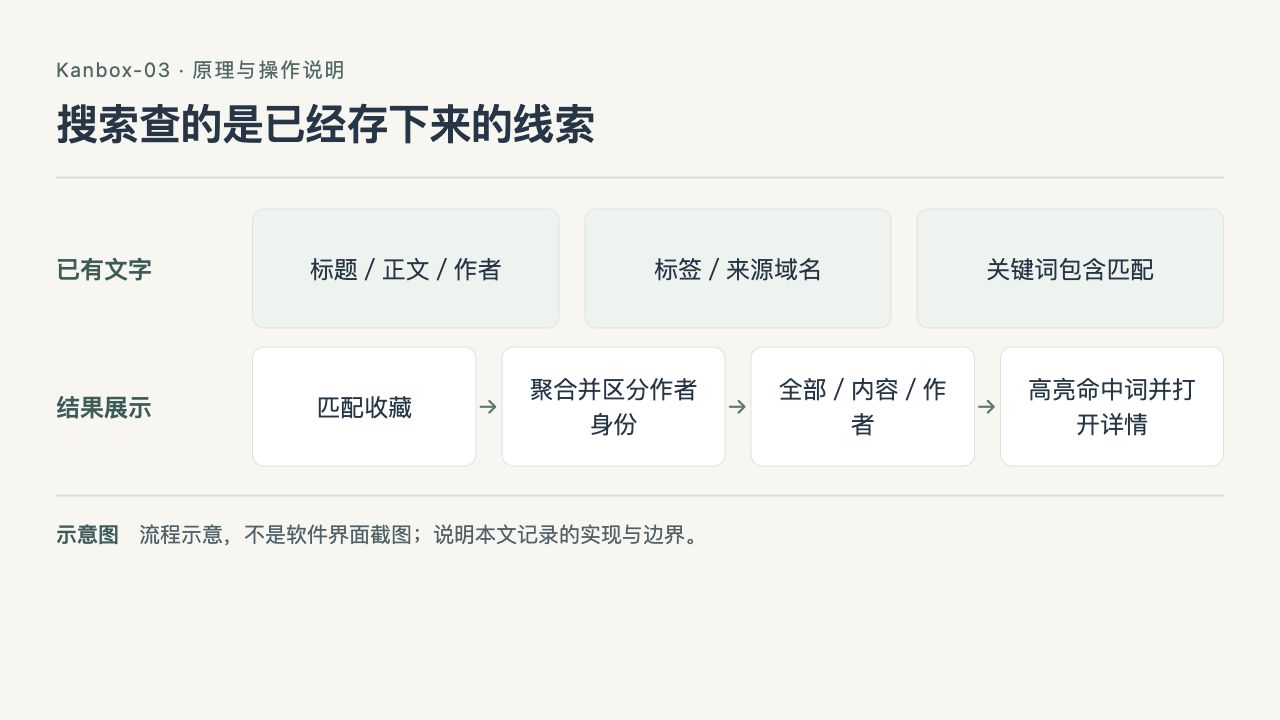
Kanbox-03 flow diagram: search looks at clues you've already saved
Author results come from aggregating matching saves, not from querying the original platform for users. Keyword substring matching isn't semantic search either; body text, image content, and audio content that were never saved won't magically become search clues.
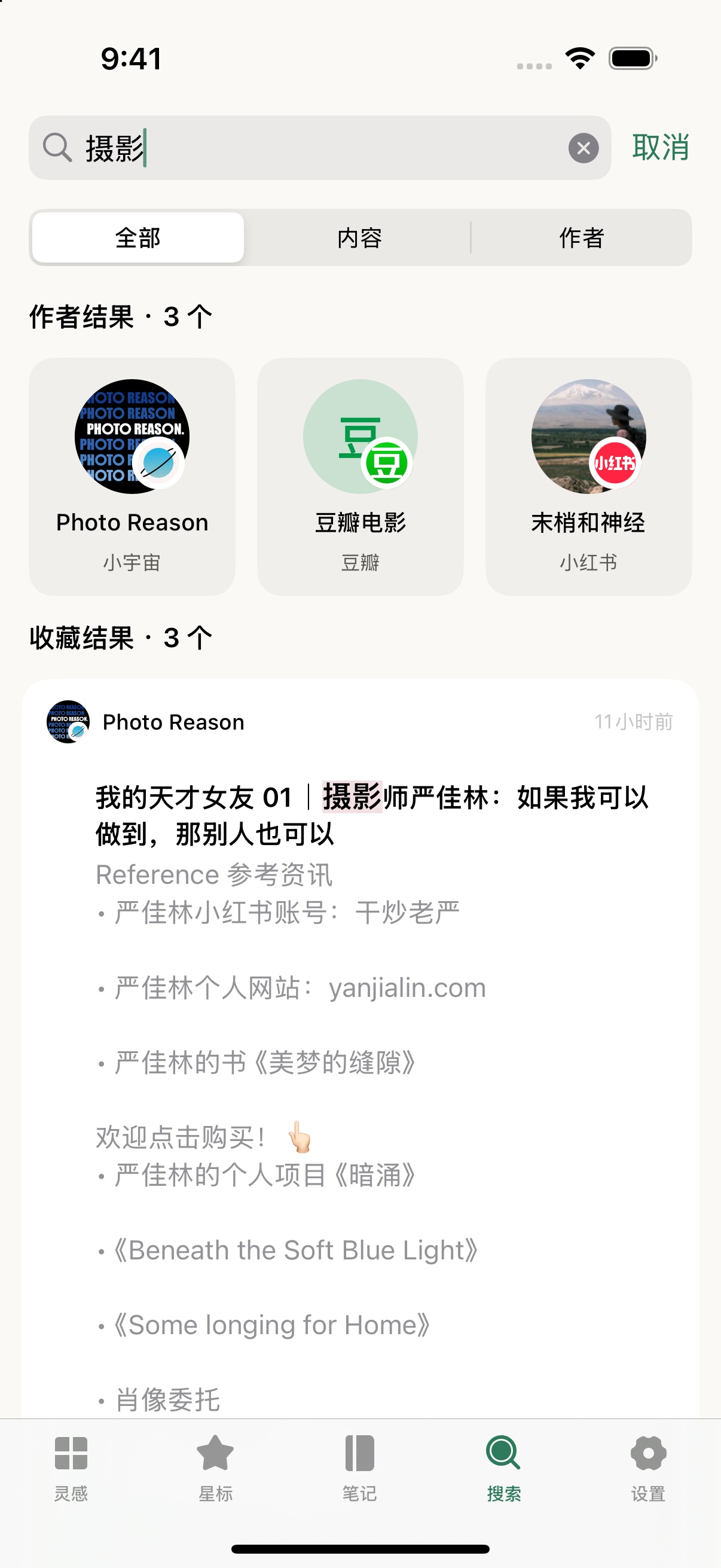
Kanbox-03 screenshot: cross-platform search results for the keyword "photography"
Searching "photography" turns up authors from Xiaoyuzhou, Douban, and Xiaohongshu, with matching saves listed below. In this sample there were 3 author results and 3 saved-item results; hits in titles are highlighted. When you can't remember which platform you saw something on, a single keyword can narrow things down.
If you only remember the source or the time, use filters
If you know it was something you saved recently on Xiaohongshu, narrowing by source and then picking a save date is more direct than trying keywords one by one. The home screen also lets you filter by content type or show starred items only.
The time here means "when you saved it," not when the original was published. If you save a years-old article today, it should show up under today's saves. It's a small distinction, but it directly affects results when you're looking for "stuff I saved last week."
Filters stack. Once you've picked a source, a time range, and tags, you see only items that meet all of those conditions. An empty result doesn't necessarily mean you never saved it; it might just mean you've stacked too many filters. Try loosening the time range first, then dropping tags, and finally searching with only the source.
Sorting and filtering are separate: filters decide what you see, sorting decides the order. If you just want the most recently saved items, sort by save time, newest first. You don't need to build a whole classification system first.

Kanbox-03 flow diagram: filters intersect, sorting only changes order
"Recent" in the diagram means save time, not original publish time. Source, time, and tags narrow the field the more you stack them; when you get no results, remove conditions first instead of concluding you never saved it.
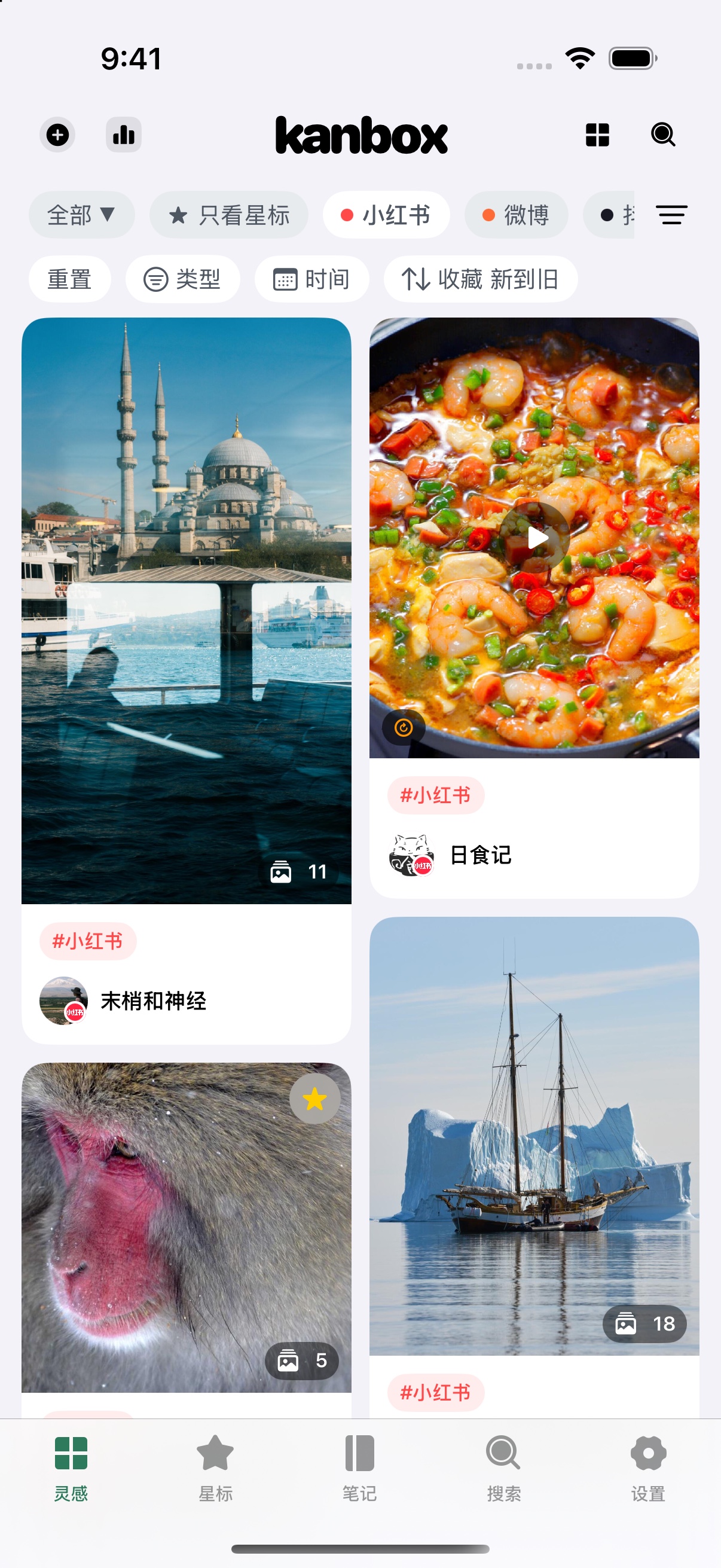
Kanbox-03 screenshot: photo-and-video grid under a Xiaohongshu filter
Filtering to Xiaohongshu only brings travel photo sets, recipe videos, and other image notes back into the same grid. Photo sets show a badge with the image count, videos keep their play button, and you can keep narrowing by type, save time, and sort order up top. This is the actual save interface, shown in its original portrait proportions rather than arranged into a promotional poster.
Tags, stars, and collections each do one job
Take recipes. A single item can carry both "cooking" and "quick" tags. No need to agonize over which one category it belongs in.
In "Quick Switch," turning off single-select mode lets you pick multiple tags in a row. With multi-select, items currently need to match all selected tags: pick "cooking" and "quick" and you get saves that have both, not everything under either tag mixed together. The more tags you add, the narrower the results, which is worth keeping in mind as you use it.
Stars are best saved for things you plan to reopen soon. A dish you want to try this weekend, a project you're about to read up on. It's a separate marker, so you don't need to create a tag that means the same thing just to flag something as "important." As for what deserves a star, that's still up to you; the app doesn't score items for you.
Collections are another layer of organization. "Inspiration Collections" currently store a name, a description, and an ordered set of tags. The members are tags, not copies of saves. Build a "Kitchen" collection, for example, and arrange "cooking," "ingredients," and "cookware" inside it, so you can jump between those topics from one entry point.
A collection's coverage count tallies saves that match any one of its tags; the same save won't be counted twice just because it carries two member tags. That's a different rule from the home screen's multi-select tags, which require all tags to match. Deleting a collection doesn't delete tags from your saves.
The tag management page lists tags you've used along with their counts; tapping a tag takes you back to the home screen with that filter applied. To change an item's tags, you still go into that item. Saves with no tags have their own entry point too, so you can sort them out later instead of finishing your classification at save time.

Kanbox-03 flow diagram: intersection for multi-select tags vs. union for collection coverage
Four example saves illustrate the counting: A has two tags, B has only "cooking," C has only "quick," and D has neither. Selecting both tags on the home screen leaves only A; a collection covering any tag yields A, B, and C, three items, without double-counting A.
Write the one note you actually need
There's no point copying out what the original already explains. What's more useful is a note that isn't in the original and only matters to you.
For a recipe: "Try this weekend, buy shrimp first." For a photography save: "Want to reference the window-frame composition in the second shot." For a podcast episode: "Re-listen to the 18:30 section." These are just examples; no need to write a full-length review.
Kanbox notes can stand alone or be linked to a save. Standalone notes suit fleeting thoughts and your own images; linked notes sit alongside the original save so you know what the note is referring to.
A single save can have multiple notes, ordered by when they were written. Jot down an idea first, add a follow-up after you actually try it a few days later. No need to rewrite the original note just to append a sentence.
The podcast timestamps here are just text you type yourself, not auto-generated chapters, and there's no promise that tapping one jumps to that second. Notes have their own title and body and can serve as search clues; they don't modify the original save's body text. The two are stored separately.
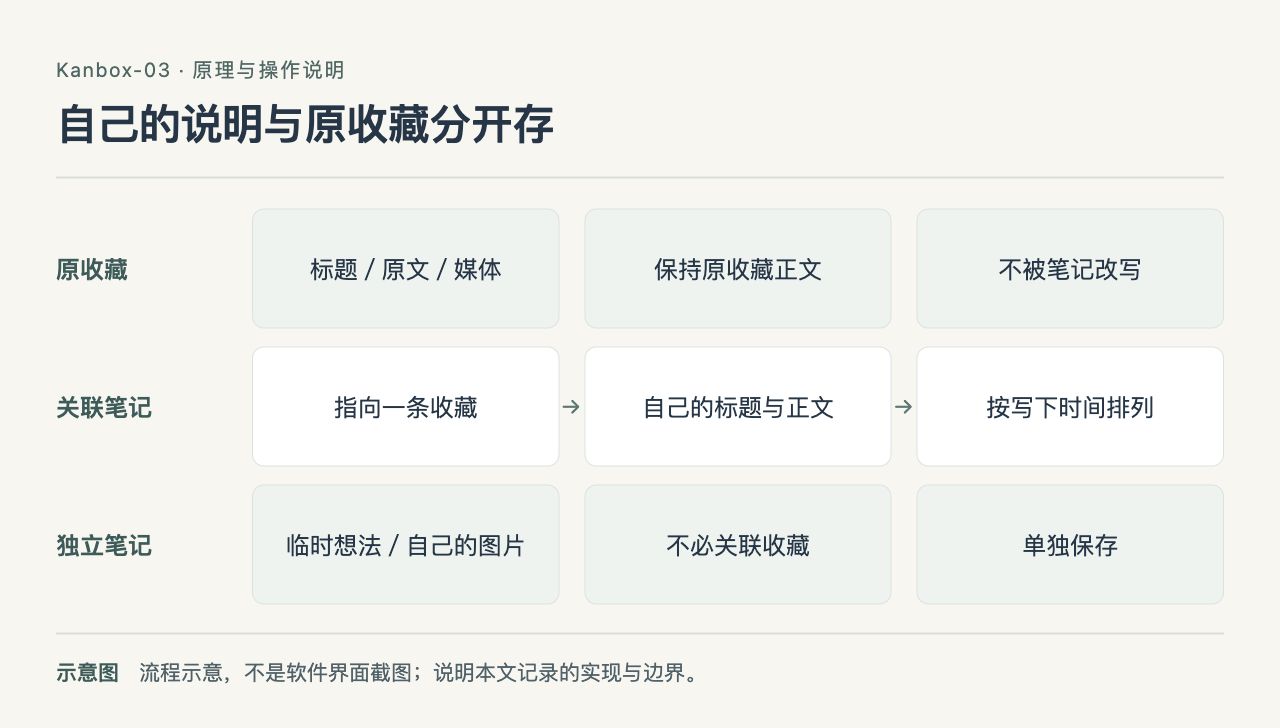
Kanbox-03 flow diagram: your notes and the original save are stored separately
Linked notes keep context; standalone notes are for your own thoughts and images. A save can have multiple notes appended over time; podcast timestamps are currently text records, not auto-jumping chapters.

Kanbox-03 screenshot: writing recipe and photography clues into your own notes
No need to paste the original text into a note. This demo note just says "What to do this weekend": first try the three-ingredient rice dish from Rishiji, then organize the Istanbul window photography note. The content comes from public links saved earlier; the text was actually typed and saved in a dedicated simulator for this piece, not placeholder copy on a blank page.
When you have no target in mind, flip through a few at random
Search requires thinking of a word first. Random review is for when you have no clear goal and just want to browse what you've saved.
A review round is currently created from whatever filter results you had when you entered. Filter to "photography" and you'll only flip through that batch; enter from starred items and you'll only use the starred filter results from that moment. Nothing outside the range will suddenly appear mid-round.
Once a round starts, the candidate pool is fixed. Items saved during the round aren't added, and the first draw doesn't repeat; "previous" and "next" let you walk back through the round's history. The unit is a save, not an image, so that set of 11 photos counts as one item.
Finishing a round won't quietly start another. This gives review an endpoint, so it doesn't turn into yet another endless feed. If an item is deleted mid-round, it's removed from the round; if loading fails, you get a retry prompt, and content that never displayed isn't counted as seen.
Review still opens the save detail view, so if something catches your eye you can star it, tag it, or add a note. That said, having one more review entry point doesn't prove people will use it often; that part depends on how usage plays out.
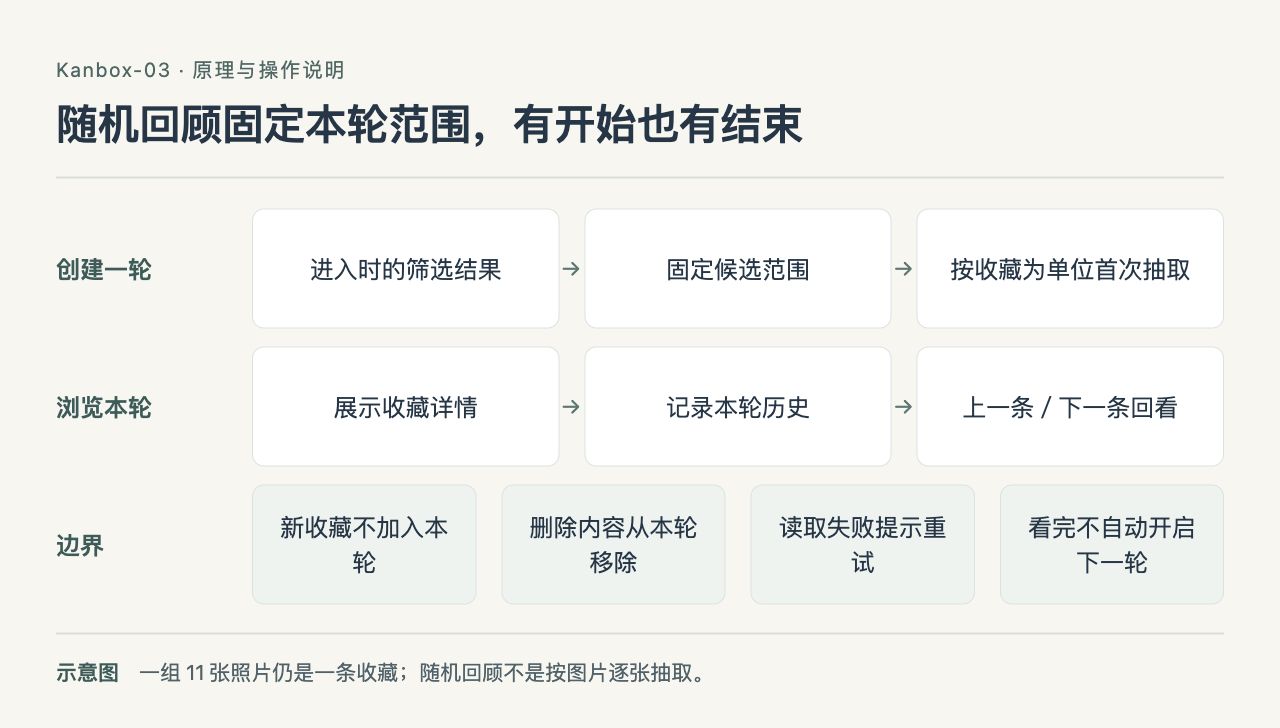
Kanbox-03 flow diagram: random review fixes the round's range, with a start and an end
The candidate pool is fixed at the start; saves added later aren't inserted. The first draw of the round doesn't repeat, and previous/next follow the history; deletions and load failures can't be counted as seen either.
Widgets offer a shorter entry point
A widget doesn't need to move the whole detail page onto your home screen. Showing a title or cover that opens the corresponding save when tapped is enough.
You can currently choose recent saves, starred items, a specific collection, or manually pinned items, with three display styles: cover-first, text-first, and mixed. Choosing a specific collection uses the collection's tag range; manual pinning keeps items in the order you added them.
Say the weekend is coming up and you want to pin that dish you're planning to try; or you're reading up on a project and want its saves on your home screen. Each item in the widget has its own deep link, so tapping one opens that one.
The widget reads a snapshot the main app writes to shared storage; it doesn't re-request from the original platform every time it appears. Refresh timing is also subject to system scheduling and budget. Requesting a refresh time in code doesn't guarantee the system will run it on time. This is also noted in Apple's WidgetKit documentation.

Kanbox-03 flow diagram: the widget reads a snapshot, the system decides when to refresh
The main app writes the shared snapshot; the widget reads it according to its own display configuration. Tapping an item's deep link opens the corresponding save. Requesting a refresh time doesn't mean the system will run it on time.
Try the flow with a small set of items first
If you use the handful of items from the first post to experiment, you don't need to organize everything carefully: tag the photography item, star the recipe, jot a note under the podcast, then find each one again using a keyword, a tag, and a star. One pass makes it fairly clear whether each entry point is useful.
There are still some limitations. Search has no semantic understanding, the audio type filter on the home screen isn't selectable yet, and collections aren't folders you can toss items into freely. Content that parsing never captured won't fill itself in just because you switch to search or review.
This post documents the implementation as of October 2, 2026. Things I still want to watch: which entry points actually save people a few taps, and which just look complete but rarely get used. Better to get these specific questions clear before deciding whether to add more features.