This is a record of installing ImmortalWrt inside a virtual machine on fnOS—not flashing a physical router. The two differ in image selection, boot method, and network card configuration, so you can't just apply the VM process directly to your home router.
Choosing the Firmware
Check the device and target platform on the ImmortalWrt download site or the firmware selector. This scenario is an x86-64 virtual machine, so when booting with UEFI you should pick the matching combined-efi disk image; choose between EXT4 and SquashFS based on what you actually need.
Factory and sysupgrade images for physical routers each have their own device scope. A filename containing OpenWrt doesn't mean it can be flashed onto any device.

Illustration: x86 VM images are not the same as physical router firmware
Creating the Virtual Machine
Prepare a matching VM architecture and firmware boot method, then import the extracted disk image or use it as the system disk. Don't connect to the production LAN yet—or plug the network card into an isolated test network—to avoid default DHCP, IPv6 RA, or duplicate gateways affecting your existing network.
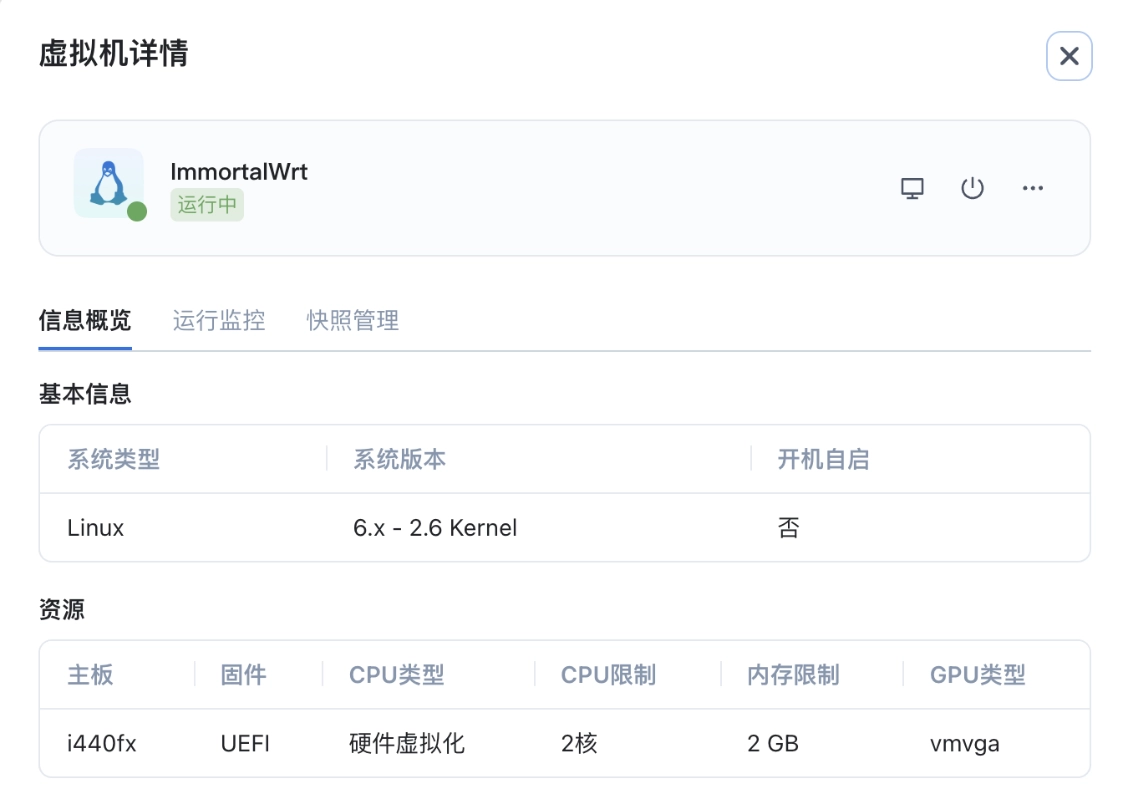
fnOS interface: creating an ImmortalWrt virtual machine
This is the fnOS VM creation screen. It shows where to start, but it doesn't mean every option looks the same in newer versions; configure CPU, memory, disk, and network card according to your current host resources.
First boot into the console and check which network cards and network configuration the system actually detects:
ip link
uci show network
uci show dhcp
Don't overwrite /etc/config/network wholesale, and don't assume the system has four network cards, eth0 through eth3. That approach easily cuts off your management network.
When Changing the LAN Address, Change Only What's Needed
First confirm that network.lan actually exists in the current configuration, then use UCI to change its address. The address below is just an example—you must replace it with an unused address in your actual network and keep the gateway plan consistent:
cp /etc/config/network /etc/config/network.before-lan-change
uci set network.lan.ipaddr='192.168.10.2'
uci set network.lan.netmask='255.255.255.0'
uci commit network
/etc/init.d/network restart
Restarting the network will drop your existing management connection, so keep the console open the whole time. The managing computer also needs to be able to reach the new subnet. Don't casually change WAN, bridge members, or VLANs just to get the page to open.
If you're connecting as a secondary router to a network that already has a main router, first verify the DHCP and IPv6 advertisement policy on the LAN in an isolated environment. Two devices must not hand out addresses on the same LAN simultaneously without planning. If it's the main router, first distinguish the WAN and LAN virtual network cards from the host bridge, then wire up and test.
Installing iStore
The official iStore project currently documents the architecture and dependency scope. First check whether the system uses apk or opkg, and don't mix software sources from different versions.
Following the official installation process, update the corresponding package index, then download the installer, inspect its contents, and run it:
cd /tmp
wget https://github.com/linkease/openwrt-app-actions/raw/main/applications/luci-app-systools/root/usr/share/systools/istore-reinstall.run
less istore-reinstall.run
chmod 755 istore-reinstall.run
./istore-reinstall.run
If the system doesn't have less, inspect it with whatever text viewer is available. If installation errors out, check the architecture, software sources, and dependencies first—don't just overwrite-install packages from other firmware.
I once ran into a "seems like it isn't working" situation when installing PassWall and a load-balancing plugin, and later tried manually overwrite-installing. That was my experience with that particular firmware at the time; it doesn't mean every current version has the same problem, and overwrite-installing shouldn't be treated as a universal fix.
References: ImmortalWrt, firmware downloads, iStore. The steps for newer versions were checked against the documentation; no virtual machine was rebuilt on your fnOS.