frp uses a server that's reachable from the public internet to forward services running on your internal network. frps runs on the public server, frpc runs on the internal machine—don't mix up which config goes where.
This guide uses the TOML configuration format that the project currently supports, and installs from the official releases. No third-party one-click scripts or outdated Docker images.
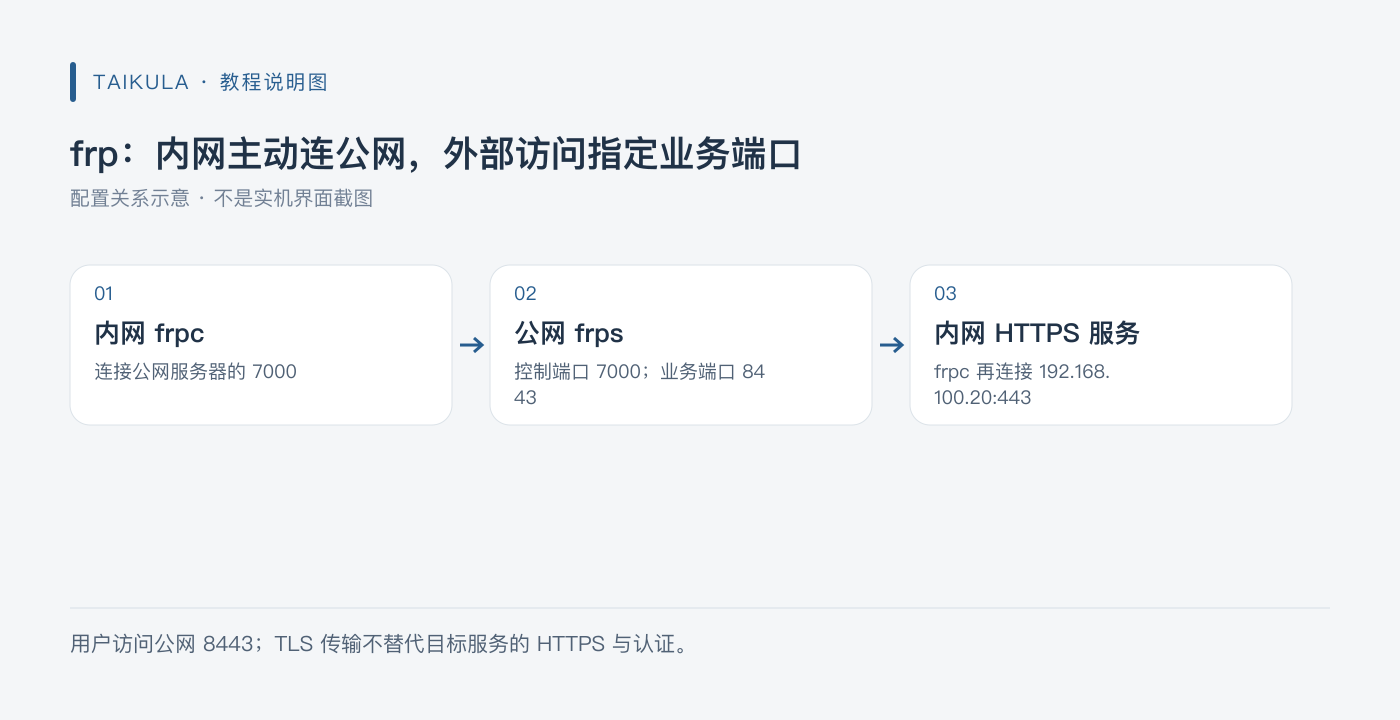
Diagram: frp—the internal network connects out to the public server, and external users reach the designated service port
Download and Directory Layout
Grab the package that matches your OS and CPU architecture from the official frp Releases, and try to use matching versions on both ends. After extracting, keep only the binaries and config files you need—there's no point pinning a download version in a tutorial that'll be outdated soon anyway.
Run it in the foreground first to confirm the ports and authentication work, then set it up to start on boot using the official guide or whatever service manager your system uses. Plan out the service directory, the user it runs as, and config file permissions at the same time—don't leave the token in a config file that every local user can read.
Server-side frps.toml
The config below opens 7000 as the control connection port and only allows proxies to use remote port 8443. Both the token and the dashboard password are placeholders you must replace.
bindPort = 7000
allowPorts = [{ single = 8443 }]

[auth]
method = "token"
token = "REPLACE_WITH_THE_SAME_LONG_RANDOM_TOKEN"

[transport.tls]
force = true

[webServer]
addr = "127.0.0.1"
port = 7500
user = "frp-admin"
password = "REPLACE_WITH_ANOTHER_LONG_RANDOM_PASSWORD"
When filling in allowPorts, make sure the array brackets are properly closed. The control port, the service port, and the admin dashboard each serve a distinct purpose—don't open up an entire port range.

Diagram: three ports, three purposes
Client-side frpc.toml
Say you really do need to expose an HTTPS service at 192.168.100.20:443 on your internal network through port 8443 on the server:
serverAddr = "YOUR_PUBLIC_SERVER_IP"
serverPort = 7000

[auth]
method = "token"
token = "REPLACE_WITH_THE_SAME_LONG_RANDOM_TOKEN"

[transport.tls]
enable = true

[[proxies]]
name = "home-https"
type = "tcp"
localIP = "192.168.100.20"
localPort = 443
remotePort = 8443
Replace the server address, internal IP, and token with real values, and make sure the machine running frpc can reach that internal service directly. The target service should have its own proper HTTPS certificate and authentication—don't expose your router's or NAS's unprotected admin interface straight to the public internet.
frp's transport-layer TLS encrypts the connection between the two endpoints. It won't automatically turn your target service's HTTP into HTTPS, and it doesn't replace application-level authentication. Your HTTPS domain and certificate still need to match how the service is actually used.
Starting Up and Checking
Start the server from its directory:
./frps -c ./frps.toml
On the client, verify the config first, then start:
./frpc verify -c ./frpc.toml
./frpc -c ./frpc.toml
Open TCP 7000 and 8443 in the server's security group and firewall. It's better to restrict where control connections can come from. The 7500 dashboard only listens on the loopback address—use SSH forwarding when you need to check it, and don't just switch it to listen on all interfaces for convenience.
ssh -L 7500:127.0.0.1:7500 your-user@your-server
Troubleshoot Layer by Layer
If frpc can't connect, check the server address, port 7000, the firewall, and the token first. If login succeeds but proxy registration fails, check for remote port conflicts and your allowPorts setting. If the proxy works but the page won't load, check the internal service itself, port 8443, and the HTTPS domain/certificate. Look at the logs for each layer—don't go changing every parameter at once.
The config has been syntax-checked for TOML, but no tunnel has been established on your two machines yet. References: official project, server configuration, examples and explanations.